
TVCastHub
Bloomscape InteractiveTools
2.912.00 Reviews
- Version
- 1.0.3
- Installs
- 10.00K
- Age Rating
- Everyone
Screenshots
Our Review of TVCastHub
 Analysis by Appyee
I tried TVCastHub with a simple goal: move a video from my phone to a larger television screen without turning the process into a technical project. That starting point matters, because casting apps are easy to judge by their promise and much harder to judge by the few minutes between choosing a video and actually watching it. TVCastHub is a free tools app from Bloomscape Interactive, built around casting videos to a TV or another screen. It is aimed at the everyday problem of having content on a phone when the people in the room would rather watch it together.
My overall impression is mixed but useful. The app has a clear purpose and can make a shared viewing situation more convenient, especially when the phone is being used as the source and a larger display is already available. At the same time, the experience depends heavily on the relationship between the phone, the receiving screen and the video itself. That means TVCastHub feels most worthwhile when it fits a particular household workflow, rather than as a universal replacement for built-in casting tools or a dedicated streaming device.
From a phone video to a shared screen
When I’m sharing a phone video with other people, I find it helps to agree on one clip and one screen before anyone starts tapping through menus. That small bit of coordination keeps the phone with the person choosing what plays and gives everyone else a chance to confirm the picture is right. Next, I’d think about who should manage that handoff and what boundaries make sense in a shared household.
The starting condition: a small screen is the problem
The most convincing use case is familiar. I have a video on my phone, someone else wants to see it, and passing the device around is awkward. A family clip, a saved tutorial, a travel video or a piece of content that is more comfortable to watch from the sofa all benefit from a larger display. TVCastHub addresses that situation directly instead of trying to become a full entertainment platform.
That narrow focus is a strength. I do not approach it expecting a large content library, social features or editing tools. I approach it as a bridge between a mobile device and a TV. The store summary describes it as a way to cast videos to a TV and screen, while the short description simply identifies it as TVCastHub. In practical terms, that makes the app easier to understand than tools that combine casting with unrelated media functions.
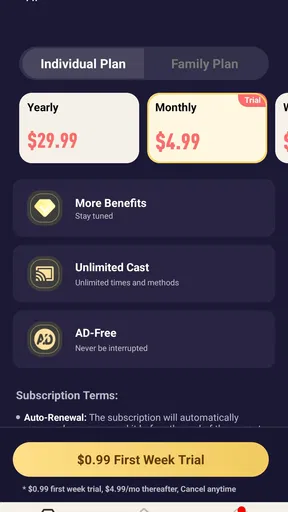
The app is listed for users aged Everyone, which suits the basic idea of showing ordinary video content on a larger display. It is also free to install, although optional purchases range from $1.99 to $49.99 per item. That pricing detail changes how I would approach it: I would first test the basic workflow with the content I actually want to watch, then decide whether any paid option adds enough value to justify it.
Step one: prepare the phone and the receiving screen
Before opening the app, I would make the setup as simple as possible. The phone and the television or receiving screen should be ready at the same time, and I would avoid beginning with a complicated video source. A short, ordinary clip is better for the first test than a long file or something that already has unusual playback restrictions.
This is one of the less obvious lessons with casting tools: the first connection is not the same as the final viewing experience. A successful connection only proves that the devices can communicate. It does not guarantee that every video source will behave identically, that sound will be perfectly synchronized or that the phone can be used freely while the video is playing. I would test with a low-stakes clip before inviting everyone to sit down for a film.
TVCastHub runs on Android starting with version 5.0, so it is accessible on a wide range of older Android devices. That broad compatibility is helpful for households that do not replace phones frequently. However, older hardware can still affect the practical experience. Even when the operating system meets the requirement, a slower phone may take longer to browse, load or hand off a video than a newer one.
Step two: choose the source carefully
The next decision is what kind of video I want to send. A locally available clip is usually the clearest starting point because the phone already knows where the file is and the app does not have to deal with an additional service or login. If the video comes from another app, the result may depend on how that app allows playback to be shared or redirected.
This is where TVCastHub should not be treated as a magic solution for every video on a phone. Casting is not simply a matter of enlarging whatever appears on the display. Some content is designed to remain inside its original app, some services use their own casting systems, and some playback paths behave differently from a normal video file. If my main reason for installing an app were to cast from one particular streaming service, I would first check whether that service already includes a native cast button. The native option is often the more direct route.
For personal clips and straightforward video playback, a dedicated casting tool can be more convenient than searching through several device menus. For protected or service-specific content, the usual alternative may be better. That distinction is important because it prevents a disappointing first attempt caused by choosing the wrong type of source rather than by the app itself.
Step three: make the handoff
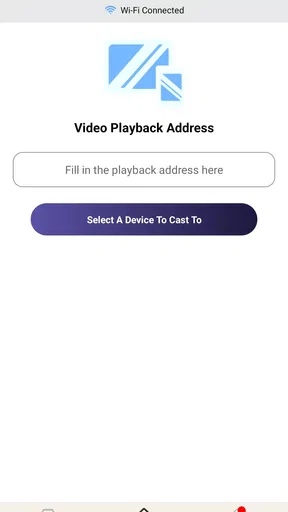
The handoff is the moment that determines whether the app feels useful. I look for a receiving screen, select it, and wait for the video to move from the phone to the larger display. A good handoff should feel like transferring responsibility: the phone chooses the content, while the TV becomes the place where the content is watched.
In a normal living-room scenario, I would keep the phone close until the picture and sound are both confirmed. This small habit avoids a common frustration. People often put the phone down as soon as the connection appears, only to discover that the video has not started correctly or that the wrong screen was selected. Keeping the source device available for the first few seconds makes troubleshooting much easier.
Another useful habit is to check the television input before blaming the app. A screen can be powered on but still be showing a different input or waiting for another device. The casting workflow involves several handoffs, and not all of them belong to TVCastHub. Separating app problems from display problems saves time and gives a more accurate impression of the tool.
Step four: move from control to viewing
Once the video appears, the ideal outcome is that the phone becomes a remote source rather than the main screen. This is the point at which I judge the app by convenience instead of by its connection process. Can I stop touching the phone? Can the people watching see the video comfortably? Does the handoff make the original problem disappear?
For a short clip, even a slightly awkward process may be acceptable. For a longer viewing session, small interruptions become much more noticeable. I would therefore use TVCastHub confidently for spontaneous sharing only after testing it with the exact kind of content I plan to watch regularly. A family that mainly shares short personal videos may have a very different experience from someone who expects a seamless evening of long-form streaming.
The best workflow also includes a clear stopping point. When the viewing session ends, I would disconnect deliberately rather than leaving the phone and television linked while moving on to another task. This is not just tidiness. It reduces the chance of accidentally sending the next video or continuing playback when nobody is watching.
Where the handoffs create friction
The main weakness of a casting app is that it sits in the middle of a chain it does not fully control. The phone supplies the content, TVCastHub manages part of the connection, the receiving screen interprets the handoff, and the video source may impose its own rules. A problem at any point can look like an app failure.
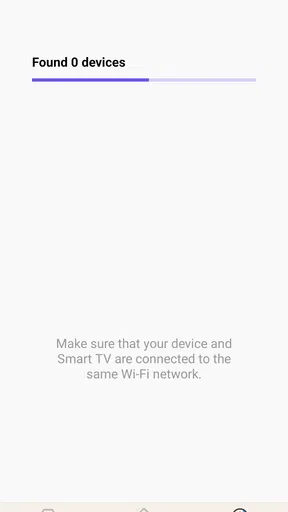
I would pay particular attention to three transitions. The first is discovery: whether the intended screen appears as an available destination. The second is playback: whether the selected video actually starts on that screen. The third is control: whether the phone remains responsive and useful after the picture has moved away from it. These transitions are more important than a polished first screen because they decide whether the app saves time in real use.
There is also a trade-off between convenience and predictability. A casting app can put several actions in one place, but built-in tools from a phone manufacturer, television platform or streaming service may understand their own ecosystems better. If I already have a reliable native method, TVCastHub has to be noticeably easier before I would change my routine.
A realistic everyday workflow
Imagine I return from a trip with a set of short videos on my phone. Friends are visiting, and the phone screen is too small for everyone to see comfortably. I would open TVCastHub, prepare the television, select one clip and wait until the group confirms that the picture and sound are visible. Only then would I queue up the rest.
The useful detail here is that I would not begin by sending every video at once. I would establish one successful handoff, watch for any mismatch between picture and sound, and then continue. If one clip fails while another works, that points toward a source-specific issue rather than a general connection problem. This simple test prevents the whole evening from becoming a guessing game.
For a child showing a school project, the same workflow can be practical. The adult can keep the phone in hand, select the relevant video and place it on the larger screen without asking the child to pass the device around. The Everyone age rating also makes the app feel suitable for a mixed household, although the content being cast still deserves the usual attention from the person controlling the phone.
How it compares with the usual alternatives
The closest alternatives are usually built-in casting controls, a television’s own media features, or the cast button inside a streaming service. These options often win when the source is a supported online platform because they remove an extra layer between the content and the screen. They may also offer more predictable controls for pausing, seeking and continuing playback.
TVCastHub makes more sense when I want one focused tool for moving videos from a phone to a screen and do not want to navigate several unrelated menus. It can also be a reasonable experiment for an older Android phone, since the minimum operating system is Android 5.0. The trade-off is that broad device compatibility does not automatically mean identical behavior across every television, source or phone.
A dedicated streaming device is usually the stronger choice for someone who watches online video on the television every day and values consistency above all else. A native television app is better when the service already supports it. TVCastHub is more appealing for occasional sharing, personal clips and situations where the phone is the natural place to find the video.
What the current release suggests
The current version is 1.0.3, which tells me to keep expectations sensible. I would treat it as a focused tool whose real value should be judged by the basic cast-and-watch loop, not by assumptions about a mature ecosystem of advanced functions. The developer is Bloomscape Interactive, and the app has passed ten thousand installs, so it has reached a real group of Android users without becoming a universally familiar standard.
Its average rating is 2.9 from thirty-one ratings, with twelve written reviews. I read that as a reason to test carefully rather than as an automatic rejection. A modest rating can reflect connection problems, device differences, unclear expectations or missing features, and those issues matter more in a casting app because the user experience depends on several pieces of equipment working together.
The small number of ratings also means I would not use the score alone to decide. I would install it on the phone that will actually be used, try the intended television and test the intended video source. That practical check tells me much more than a general impression from a rating, especially when the app is free to start.
Who should use it, and who should skip it?
I would recommend trying TVCastHub if you regularly have videos on an Android phone that you want to show to a group on a larger screen. It is especially suitable for casual sharing, personal recordings and households where the phone is the easiest place to locate content. The free entry point makes that experiment low risk, provided I remember that optional purchases are available.
I would skip it if my only goal is casting from a service that already has a dependable built-in television app or cast control. Adding another tool in that situation may create more steps rather than fewer. I would also look elsewhere if I need guaranteed performance for important presentations, long viewing sessions or a large collection of protected streaming content. For those jobs, a native or dedicated solution is usually easier to standardize.
My final outcome after following the workflow
TVCastHub succeeds when the problem is simple: a video is on the phone, a larger screen is available, and I want to share the viewing experience without passing the phone around. Its focused purpose is easy to understand, and the low barrier to trying a free tools app is appealing. The most important practical advice is to test the full path from source selection to visible playback before relying on it for a group.
I would not call it an automatic replacement for built-in casting or a dedicated streaming setup. The handoffs between phone, app, screen and video source create too many variables for that conclusion. Still, for the right household workflow, it can be a useful bridge. My recommendation is cautious but positive: try it with one ordinary clip, confirm that your specific screen and source cooperate, and keep it if it genuinely removes steps from the way you already share videos.
Verdict
Strengths of TVCastHub
- Supports casting to many popular smart TV brands.
- Simple interface makes finding and playing content easy.
- Useful remote-control features for compatible devices.
- Works well for sharing videos and photos on a larger screen.
- Convenient option for streaming from mobile devices without cables.
Limitations of TVCastHub
- Compatibility may vary depending on the TV model and network setup.
- Some features may require a premium upgrade or subscription.
- Performance can suffer on slow or unstable Wi-Fi connections.
- Advertising may interrupt the experience for free users.
- Certain media formats or protected content may not cast properly.
Similar Picks in This Category
View All
Google LLC4.0

Gboard - the Google Keyboard
Google LLC4.5

Google Play services
Google LLC4.3

Google Play Store
Google LLC4.9

Files by Google
Google LLC4.5

SHAREit: Transfer, Share Files
Smart Media4U Technology Pte.Ltd.4.3
Frequently Asked Questions
What is TVCastHub and what can I use it for?
TVCastHub is designed to help users stream or cast video content from a mobile device to a compatible television or larger screen. Its usefulness depends on the content source, device compatibility, and network setup. Before downloading, check whether your phone, smart TV, streaming device, or receiver is supported and whether the app is intended for personal media, web content, or specific services.
Is TVCastHub compatible with Android and iPhone devices?
Compatibility can vary according to the operating system version, phone model, and receiving device. In general, users should review the current Google Play or App Store listing to confirm supported versions before installing TVCastHub. It is also important to verify that both the mobile device and television use the same Wi-Fi network, since casting and discovery features may not work correctly across separate networks.
Does TVCastHub require a subscription or include additional costs?
The download price and available features may differ depending on the platform and the version published by the developer. Some casting applications offer basic functionality for free but may include advertising, optional premium tools, or in-app purchases. Read the store description and payment details carefully before confirming a purchase, especially if you want an ad-free experience or access to advanced playback and connection options.
Why might TVCastHub fail to find my television or streaming device?
Discovery problems are commonly caused by different Wi-Fi networks, disabled local-network permissions, an inactive receiver, outdated software, or router settings that isolate connected devices. Restarting the app, phone, television, and router can help. You should also confirm that casting is enabled on the receiving device and that TVCastHub has permission to access the local network, where required by Android or iOS.
Is TVCastHub safe to download and use?
The safest approach is to install TVCastHub only from its official Google Play or Apple App Store listing and check the displayed developer name, permissions, privacy information, ratings, and recent reviews. Avoid modified APK files or unofficial download pages. Because casting apps may handle network, device, and media-related data, review the privacy policy and grant only permissions that appear necessary for the features you plan to use.
